Invite people to your enterprise
Use the Users page to invite administrators or members, track invitations, and review join requests.
Before you begin
- Sign in with an account that can manage users.
- Decide which organisational unit the person belongs to.
- Grant only the roles required for their work. Use a custom admin role instead of Super Admin where possible.
Invite one or more people
- In FydeOS Management Cloud, open Users.
- Click Invite Users.
- Select the destination Organisational Unit.
- Enter the person's Email and Name.
- Select one or more Roles, if they need administrative access.
- Use the + button to add another row.
- Click OK.
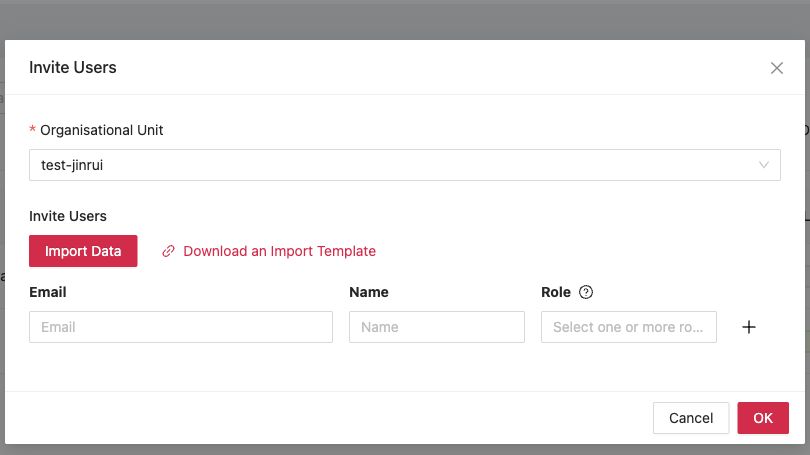
For a larger batch, click Import Data. Download the import template first, keep its column structure unchanged, complete the rows, and upload the finished file.
Check invitation status
- Open Users.
- Select the Invitations tab.
- Search by email or filter by organisational unit.
- For a pending invitation, use Resend or Revoke.
An accepted invitation remains visible as accepted. Resend and revoke actions are disabled after acceptance.
Review join requests
The Requests tab shows people who requested access. Filter by requester email or status, check the reason, and approve or reject the request according to your organisation's access process.
After the person joins
On the Users tab you can:
- Move the user to another organisational unit.
- Edit roles to change administrative access.
- Delete a user who no longer needs enterprise access.
- Check the Login Security column to see whether secure sign-in is enabled for the account.
Verify the result
Confirm that the user appears under Users, is in the intended organisational unit, and has only the required role. Ask new administrators to sign in once and verify that they can open the pages required for their work.
If the invitation does not arrive
- Confirm the address and invitation status.
- Check the recipient's spam or quarantine folder.
- Use Resend once rather than creating duplicate invitations.
- Revoke the incorrect invitation before sending a corrected one.
What's next
- Organisational units and policy inheritance, prepare policy scope before deployment.
- Create an enrolment image, prepare repeatable device deployment.
- Enrol a FydeOS device, bring a pilot device under management.
- Licences and subscriptions, check capacity before a rollout.