Create an enrolment image
An enrolment image contains the information required to enrol a device with your enterprise after installation. Use it for repeatable deployments and zero-touch enrolment.
Before you begin
- Confirm the device board and the FydeOS version you intend to deploy.
- Create or select the destination organisational unit.
- Confirm that the required licence type has available capacity.
- Prepare Wi-Fi details if devices must connect without manual network setup.
Generate the image
- Open Devices → Enrolment Images.
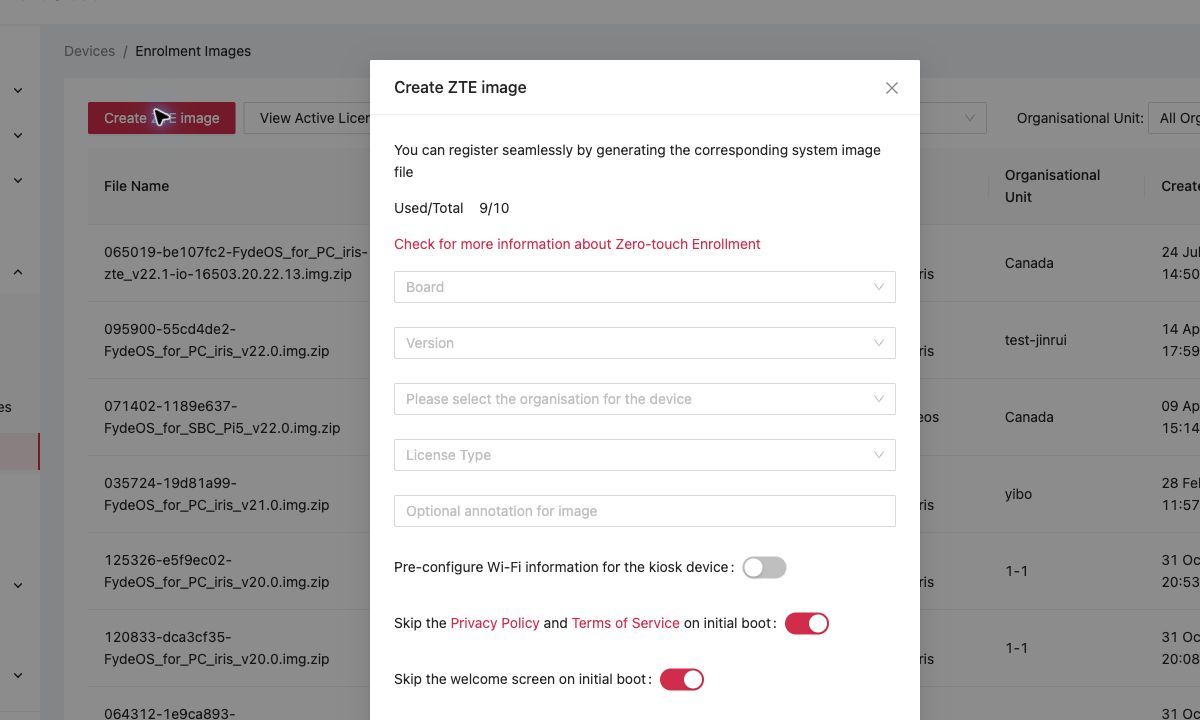
- Click Create ZTE image.
- Select the device Board.
- Select the FydeOS Version.
- Select the destination organisation.
- Select the License Type.
- Add an annotation that identifies the deployment batch or site.
- Optional: enable Pre-configure Wi-Fi information and enter the network details.
- Review the initial-boot options:
- Skip the Privacy Policy and Terms of Service screen.
- Skip the welcome screen.
- Allow users to fill in custom fields.
- Click Generate Image.
Wait for generation
Return to Devices → Enrolment Images and click Refresh. The status changes while the image is being prepared. You can also enable the ZTE image generated notification under Notification Centre → Settings.
Do not flash or distribute the file until its status is Ready.
Download and deploy
- Open the action menu for the ready image and download it.
- Verify that the filename, board, version, licence type, and organisational unit match the deployment plan.
- Write the image to the target installation media using the recommended FydeOS installation process.
- Boot one pilot device, connect it to the network, and complete installation.
- Confirm that it appears in the correct device list and organisational unit.
- Only then use the image for the remaining devices.
Manage image records
Use the filters for board, version, and organisational unit to find an image. Keep annotations meaningful so another administrator can identify its purpose. Retire outdated images from your deployment process even if their records remain in the console.
If generation fails
- Check that the selected board and version are compatible.
- Confirm that a licence is available.
- Retry with a short annotation and without optional Wi-Fi configuration.
- Check Notification Centre for a related message.
- Record the board, version, licence type, organisation, time, and failed status before contacting support.
What's next
- Organisational units and policy inheritance, prepare policy scope before deployment.
- Enrol a FydeOS device, bring a pilot device under management.
- Licences and subscriptions, check capacity before a rollout.