Manage users and invitations
The Users page contains three views: current Users, pending and accepted Invitations, and enterprise join Requests.
Invite users
- Open Users.
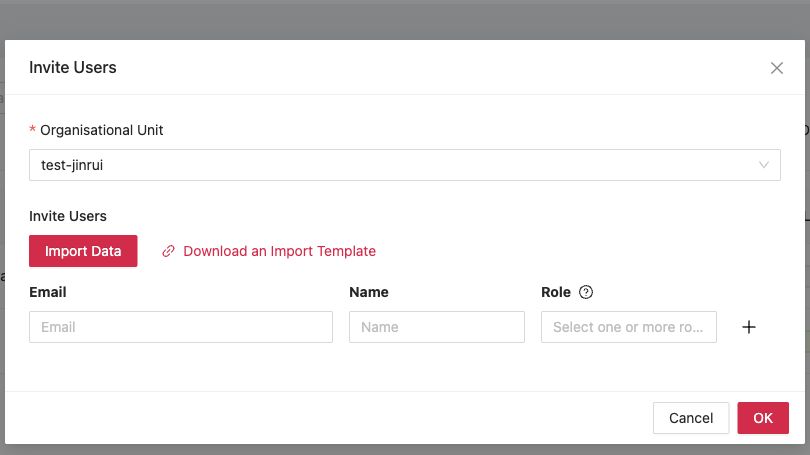
- Click Invite Users.
- Choose an organisational unit.
- Enter the email address and name.
- Select the required roles.
- Add more rows with +, or use Import Data with the downloadable template.
- Click OK.
Search and filter
- Search current users or invitations by email.
- Use the organisational-unit selector to narrow the list.
- Use Refresh after an invitation is accepted or a role is changed.
- On Requests, filter by status and requester email.
Move a user
- On the Users tab, find the user.
- Click Move.
- Select the destination organisational unit.
- Confirm the move.
- Review the policies inherited by the destination unit.
Moving a user can change user settings and app assignments. Test the destination unit before moving a large group.
Change administrator access
- Click Edit roles for the user.
- Select only the reusable roles needed for the person's responsibilities.
- Save the change.
- Ask the administrator to sign out and back in, then verify access.
Create reusable roles under Enterprise Settings → Admin Roles. The built-in Super Admin role has all permissions and cannot be edited or deleted.
Remove a user
Before deletion, transfer ownership of any operational work and confirm that another administrator retains access. Click Delete, verify the selected account, and confirm.
Monitor secure sign-in
The Login Security column shows whether the user's secure sign-in is enabled. Enterprise-wide requirements are configured under Enterprise Settings → Login Security.
What's next
- Configure user policies, apply browser settings to managed users.
- Admin roles and login security, protect Management Cloud access.