Set up a Kiosk device
Kiosk mode turns a managed FydeOS device into a single-purpose endpoint that launches one selected app or website.
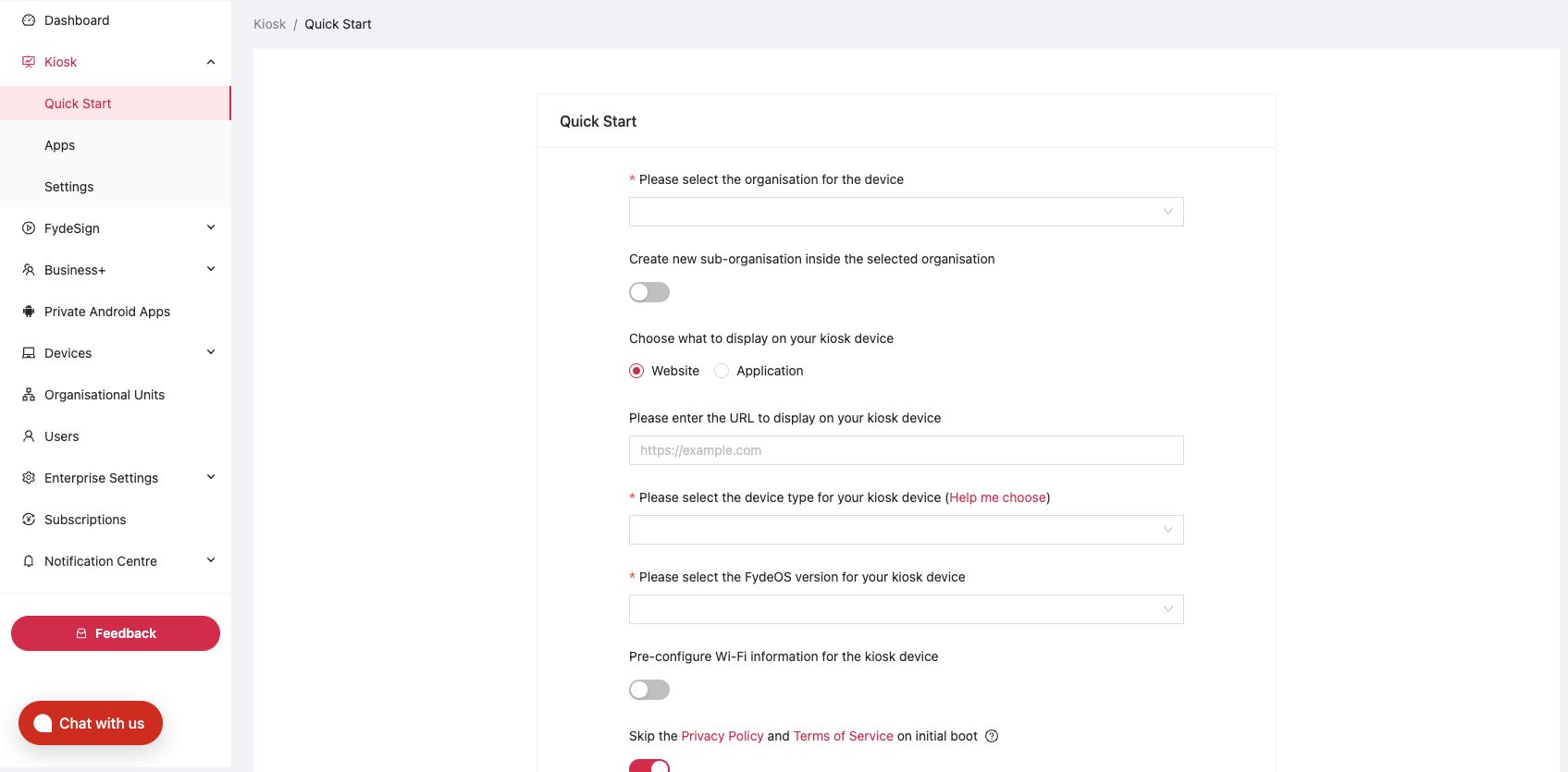
Fastest path: Kiosk Quick Start
Use this path for a new deployment that needs a new enrolment image and a single website or application.
- Open Kiosk → Quick Start.
- Select the organisation for the device.
- Optional: enable creation of a new sub-organisation.
- Choose Website or Application.
- Enter the website URL or choose the application.
- Select the device type and FydeOS version.
- Optional: pre-configure Wi-Fi.
- Review the initial-boot options.
- Click Generate zero-touch enrolment image.
- Wait for the image to become ready under Devices → Enrolment Images.
Configure an already enrolled kiosk
1. Add the app
- Open Kiosk → Apps.
- Select the kiosk's organisational unit.
- Click Add and choose the required app source.
- Add the website, Chrome app/extension, recommended app, or private Android app.
2. Set auto-launch
In the Auto-Launch App row, choose the app that should open when the device starts. Only one app can auto-launch for an organisational unit.
3. Configure kiosk settings
Open Kiosk → Settings, select the organisational unit, and configure only the settings required for the deployment. Common settings include:
- URL blocklist and exceptions.
- Virtual keyboard features for websites.
- Troubleshooting tools shortcut.
- Scheduled suspend and lid-close action.
- AC and battery idle, dim, and screen-off behaviour.
- Accessibility and input methods.
Review Updated setting entries, then click Save.
Verify before rollout
- Enrol one pilot device in the target unit.
- Restart it.
- Confirm that the selected app launches without user intervention.
- Test network reconnect, power loss, idle behaviour, and any required peripherals.
- Confirm that the device appears online under Devices → Kiosk & Business+ Devices.
- Confirm that Remote Desktop works if it is part of the support plan.
Change the kiosk app
Add and test the replacement app first. Then change Auto-Launch App, save, and restart one pilot device. Do not remove the old app until the replacement is confirmed.
If the kiosk does not auto-launch
- Check that the device is enrolled with a Kiosk-capable licence.
- Confirm the device and app policy use the same organisational unit.
- Confirm that an auto-launch app is selected.
- Check that the app is compatible and its URL is reachable without redirects or interactive sign-in.
- Restart the device after policy sync.
- See Troubleshooting checklist.
What's next
- Publish content with FydeSign, assign signage content to managed devices.
- Troubleshooting checklist, diagnose auto-launch and connectivity problems.