Publish content with FydeSign
FydeSign is the digital-signage workflow in FydeOS Management Cloud. The normal order is:
Enrol device → auto-launch FydeSign → add media → create playlist → assign playlist → verify device
Before you begin
- Enrol the signage device and place it in the intended organisational unit.
- Confirm a suitable Kiosk licence.
- Decide the screen count and content schedule.
- Prepare image, video, or web content that the device can reach.
1. Make the device a FydeSign device
- Open Kiosk → Apps.
- Select the device's organisational unit.
- Add FydeSign if it is not already listed.
- Select FydeSign as the Auto-Launch App.
- Restart one pilot device.
A registered device with FydeSign as its auto-launch app appears under FydeSign → Devices.
2. Add content to the library
- Open FydeSign → Library.
- Click Add.
- Choose Upload image/video file or Add the link.
- Wait for the item to appear in the library.
- Preview it and confirm the name, duration, and size.
3. Create a playlist
- Open FydeSign → Playlists.
- Click New Playlist.
- Enter a name that identifies the site or campaign.
- Select the screen count when using a multi-screen layout.
- Save the playlist.
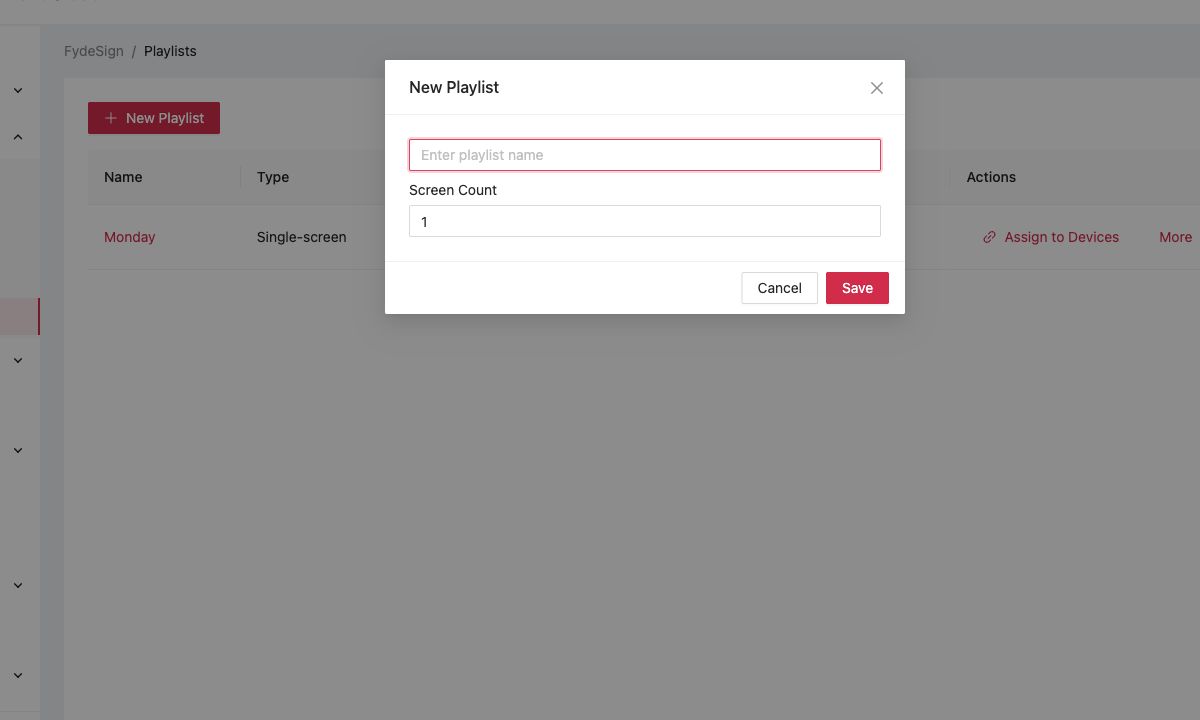
- Open it and click Add to add library items.
- Set repeat rules, start/end dates, time slots, and order as required.
- Use View Schedule to check the result.
- Click Confirm to publish pending timeline changes.
4. Assign the playlist
- Return to FydeSign → Playlists.
- Click Assign to Devices for the playlist.
- Select the intended devices.
- Confirm the assignment.
You can also review a device's associated playlist under FydeSign → Devices.
Verify playback
- The device is online and listed under FydeSign → Devices.
- FydeSign starts after a reboot.
- The expected playlist is associated with the device.
- Every media item loads and plays for the intended duration.
- Scheduled content uses the expected date, time, and time zone.
- The display recovers after network or power interruption.
Troubleshooting
If a device does not appear, confirm that it is enrolled and that FydeSign is the auto-launch app under Kiosk → Apps. If content does not update, confirm the playlist was assigned and pending timeline changes were confirmed.
What's next
- Set up a Kiosk device, prepare enrolment, auto-launch, and device settings.
- Troubleshooting checklist, diagnose auto-launch and connectivity problems.