Admin roles and login security
Use reusable admin roles to grant the minimum access needed, and require secure sign-in for accounts that can access Management Cloud.
Create an admin role
- Open Enterprise Settings → Admin Roles.
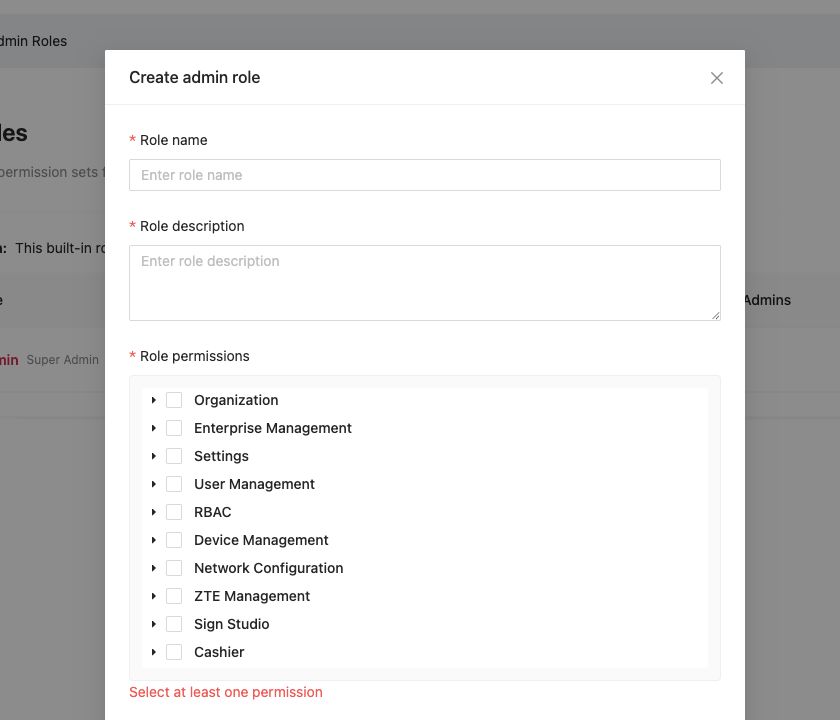
- Click Add new admin role.
- Enter a role name and description.
- Select at least one permission.
- Review the permission groups, including organisation, users, roles, devices, networks, enrolment images, and FydeSign.
- Click OK.
The built-in Super Admin role grants every permission and cannot be edited or deleted. Keep the number of Super Admins small.
Assign a role
- Open Users.
- Find the administrator.
- Click Edit roles.
- Select the required reusable roles.
- Save and ask the administrator to sign in again.
- Verify both required access and denied access.
Require secure sign-in
- Open Enterprise Settings → Login Security.
- Review the current policy and accepted methods.
- Prepare all administrators to set up a Passkey or Authenticator app.
- Enable Require secure sign-in.
- Click Save.
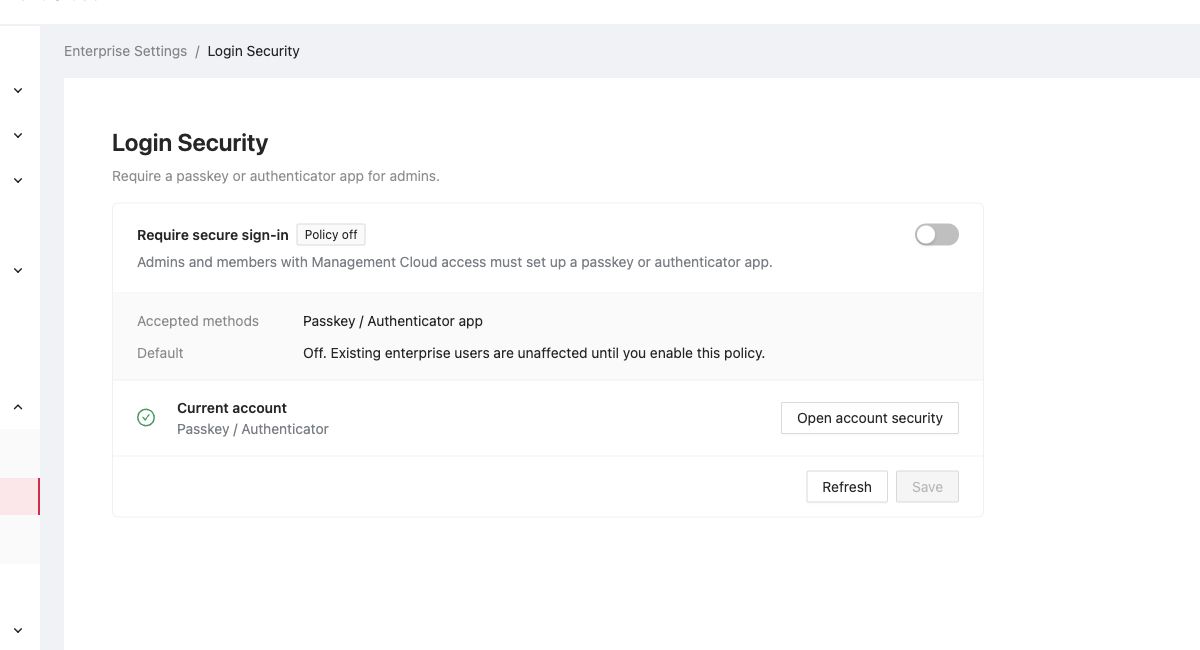
Use Open account security to manage the current account's methods. Before enforcing the policy, keep at least two tested administrator accounts and a documented recovery contact.
Access review
Review quarterly and whenever responsibilities change:
- Super Admin membership.
- Custom role permissions.
- Inactive or departed users.
- Login Security status.
- Whether emergency access still works.
What's next
- Manage users and invitations, invite people and assign roles or organisational units.
- Configure device policies, apply settings to a pilot organisational unit.
- Dashboard and notifications, monitor the result of administrative changes.