Manage certificates
Upload certificates when managed Wi-Fi, VPN, TLS-inspecting proxies, or internal web services require a trusted certificate authority or client identity.
Before you upload
- Confirm whether the file is a root/intermediate CA, server certificate, or client certificate.
- Verify the issuer, subject, validity period, key usage, and fingerprint through a trusted channel.
- Prepare
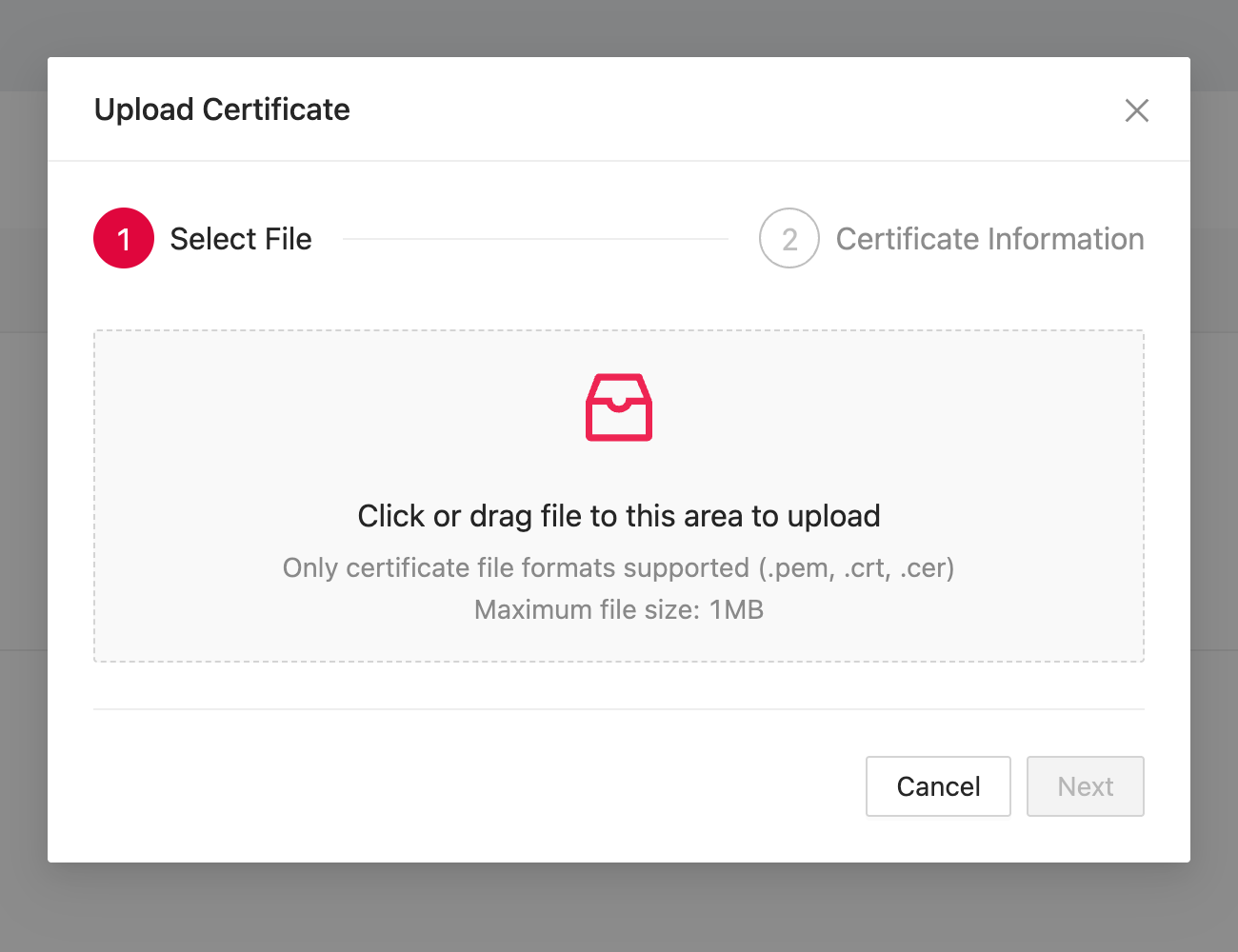
.pem,.crt, or.cerformat. The current uploader accepts one file up to 1 MB. - Select the same organisational unit that will receive the dependent network or browser policy.
- Do not upload a private key unless the workflow explicitly requires it and your security owner has approved the handling method.
Upload a certificate
- Open Business+ → Certificates.
- Select the target Organisational Unit.
- Click Upload.
- On Select File, click or drag the approved certificate into the upload area.
- Confirm the file type and size, then click Next.
- On Certificate Information, review and complete the fields shown by the console.
- Finish the upload.
- Confirm that the list shows the expected Name, Upload Date, Issued To, and Expiry Date.
Use certificates in network policy
The Certificates page distributes an approved certificate to the selected
scope. ONC can also contain certificate objects and reference them by GUID.
Choose one documented deployment method and keep the certificate and network
scope aligned.
For EAP-TLS or a private CA:
- Upload or define the CA certificate first.
- Record the certificate purpose and identifier used by the ONC.
- Reference the server CA or client certificate pattern from the EAP or VPN object.
- Apply the certificate and network configuration to the same pilot unit.
- Verify certificate selection and server validation on the device.
Renew or replace a certificate
- Inventory every Wi-Fi, VPN, proxy, website, and app that depends on the old certificate.
- Upload the replacement before the old certificate expires.
- Update the pilot policy to trust or select the replacement.
- Test authentication, certificate chain validation, and restart behaviour.
- Roll out the replacement.
- Remove the old certificate only after all dependent configurations have moved and monitoring shows no remaining use.
Use names that identify the purpose and environment. Record the owner, issuing CA, fingerprint, expiry date, dependent policies, and renewal procedure.
Troubleshooting
If authentication fails, check:
- The certificate is valid now and the device clock is correct.
- The complete trust chain is available.
- Subject Alternative Name and key usage match the service.
- The certificate and network policy reach the same organisational unit.
- The ONC
ServerCARef,ClientCertRef, orClientCertPatternmatches the intended certificate. - The client certificate contains a private key when client authentication requires one.
- A TLS-inspecting proxy is not presenting an unexpected issuer.
Keep a fallback network while testing. For a broader sequence, see Troubleshoot Managed Networks.
What's next
- Configure network policies, validate and publish ONC safely.
- Troubleshoot managed networks, diagnose policy and connection failures.
- ONC reference, look up schema fields and accepted values.